
Stream Status
Stream Status shows where your show goes live, right now and in the past. Detected streams power the Live badges shown on your tip page, the leaderboard, and your supporters’ public profiles, as well as per-stream stats. To open it, go to the Creator Dashboard and select Settings → Stream Status.
Connected Channels
Section titled “Connected Channels”The Connected Channels section lists each platform Supertip watches and whether it is live. Channels are checked every minute, and a channel reads LIVE here as soon as Supertip picks up its broadcast.
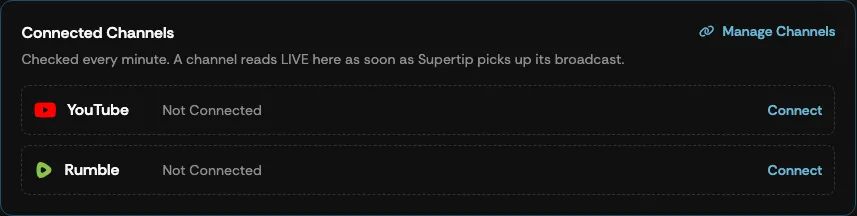
Each channel row shows one of three states:
| State | What it means |
|---|---|
| LIVE | Supertip has detected a broadcast running on this channel. |
| Offline | The channel is connected but not currently broadcasting. |
| Not Connected | No channel is connected for this platform. Select Connect to set one up. |
Live Now
Section titled “Live Now”While you are broadcasting, the Live Now section shows the current stream with its start time, duration, tip count, and gross earnings, along with how many viewers are watching on each platform.
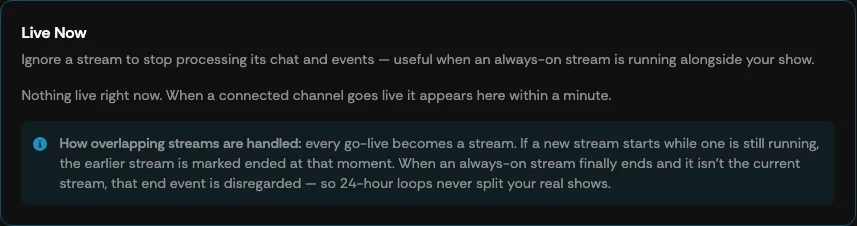
Each live stream has an Ignore toggle. Ignoring a stream stops Supertip from processing its chat and events — useful when an always-on stream is running alongside your show and you don’t want it feeding your Panel. An ignored stream also doesn’t count as “live” for the Live badge on your tip page and the leaderboard.
Where viewers see you are live
Section titled “Where viewers see you are live”While a connected channel is live (and not ignored), a Live pill appears under your show name on your tip page, with a YouTube or Rumble icon for each running broadcast that links viewers to it — the YouTube watch page, or your Rumble account’s live page. The same Live badge shows next to your show on the Supertip leaderboard and on your supporters’ public profiles.
Past Streams
Section titled “Past Streams”The Past Streams section lists your finished broadcasts, with the date, the duration, the number of tips, the gross earnings, and the top tipper for each stream. Select View All to load older broadcasts.

Tips are attributed to the stream they landed in. Overlapping streams group into one, and ignored streams don’t count or group. Tip totals are computed live — nothing here is stored separately.