
Goals
Supertip Goals let you display a dollar amount of Supertip earnings you want to reach. As viewers purchase tips, the goal progress bar fills up. This article covers creating a goal on the Goals settings screen and the goal controls available on the Panel.
Creating a goal
Section titled “Creating a goal”Goals are created from the dedicated Goals settings screen. Open it from the Creator Dashboard by selecting Settings → Goals. If you have no active goal, the Create Goal button in the Panel’s Goals section takes you to the Settings area as well.
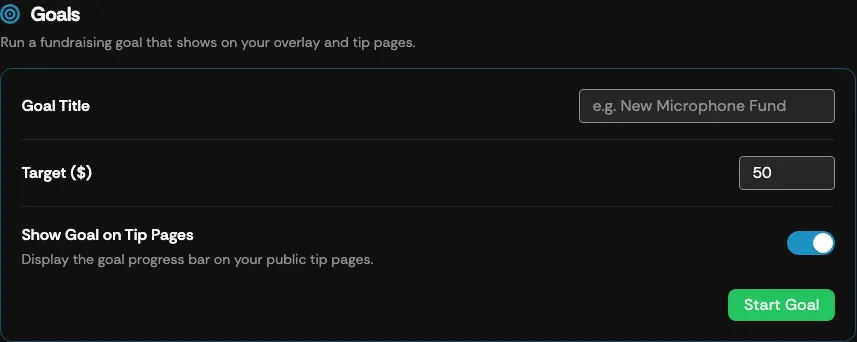
To create a goal:
- Enter a title for the goal in the Goal Title text box.
- Enter how much you want the goal to be in the Target ($) box.
- Select Start Goal to display the goal on your Overlay.
- Display the goal on your Supertip page by enabling the Show Goal on Tip Pages toggle.
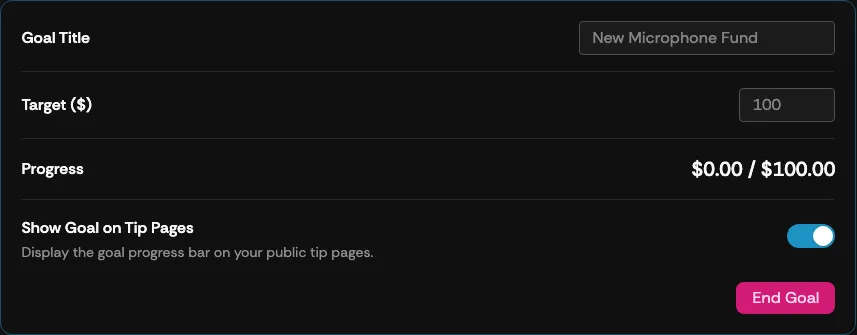
The goal’s progress displays once you have selected the Start Goal button.
Goal settings on the Panel
Section titled “Goal settings on the Panel”Once the goal is created, its progress updates in real time and is shown in the Goals section of your Dashboard Panel.
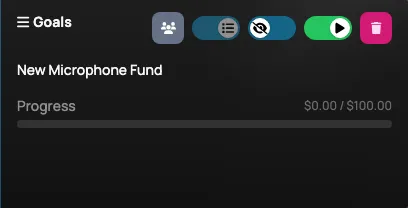
The following goal settings are available from your Panel screen:
- View Contributors — shows a list of viewers who purchased tips that contributed to the goal’s progress.
- Contributors Visible / Hidden — shows or hides the list of contributing viewers on the Goals overlay.
- Goal Visible / Hidden — shows or hides the goal on your overlay.
- Goal Paused / Active — activates or pauses the ability for viewers to contribute to the goal’s progress.
- Delete Incentive — deletes the current goal.