
Polls
You can create one active poll at a time for your viewers to interact with, using the Poll section of the Creator Dashboard Panel screen. This article walks you through creating a poll and managing its settings.
Creating a poll
Section titled “Creating a poll”To create a poll:
- Select Create Poll.
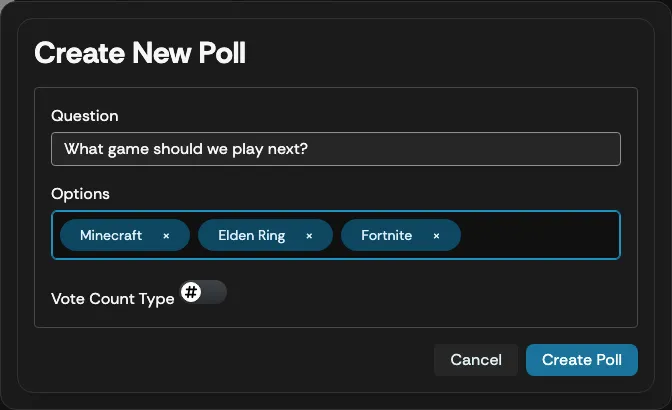
- Enter the poll question text you want viewers to see in the Question field.
- Enter the poll options in the Enter options… field. Press Enter to create each additional option you want to add to the poll.
-
Use the toggle button next to Vote Count Type to select how votes are counted:
- Number — votes are counted based on the voting numbers alone.
- Dollars — votes are counted based on the dollar amount contributed in the corresponding Supertip.
-
Select Create Poll when finished.
How viewers see your poll
Section titled “How viewers see your poll”Your viewers can interact with your poll when they open your Supertip URL. The poll appears under the voice, text, or image tip options.

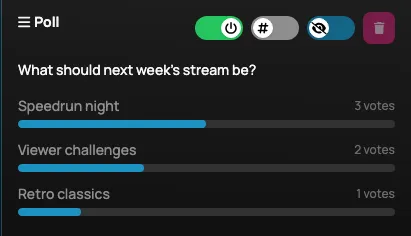
The latest poll results are updated in real time and shown on your Dashboard Panel in the Poll section.
Poll settings
Section titled “Poll settings”The following poll settings are available from your Panel screen:
- Poll Open — makes the poll available to viewers using your Supertip; it appears under the text, voice, or image tip options.
- Poll Closed — viewers do not see the poll while it is set to Closed. Selecting this toggle button makes the poll available for viewers to see and interact with.
- Count by Number of Tips — poll results are calculated by the number of tips given by viewers. Selecting this toggle button switches results to Count by Dollar Amount of Tips.
- Count by Dollar Amount of Tips — poll results are calculated by the dollar amount of tips given by viewers. Selecting this toggle button switches results to Count by Number of Tips.
- Poll Hidden on Overlay — poll results are hidden from the main stream overlay. Selecting this toggle button switches the poll to Poll is Visible on Overlay.
- Poll is Visible on Overlay — poll results display on your overlay.
- Clear Poll — prompts you to clear the poll. This option is only available once the Poll Closed toggle button is selected.