
Tip Actions and Queue Filters
Your tip queue gives you two ways to manage incoming Supertips: queue filters that control which tips are listed, and tip actions that let you interact with an individual tip.
Unplayed and Played
Section titled “Unplayed and Played”Tips that have not been played yet appear in the Unplayed queue, and tips that have been played move to the Played queue. The Unplayed button shows the number of unplayed tips, and the filter bar shows how many tips match your current filters (for example, “3 of 3 tips”).
The filter bar
Section titled “The filter bar”
| Control | What it does |
|---|---|
| Unplayed | Displays the queue of tips that have not been played yet, or tips that have been marked as unread. |
| Played | Displays the queue of tips that have been played, or tips that have been marked as read. |
| Types | Filters the queue by tip type — Text, Voice, and Image, each with a count of matching tips. YouTube events (Super Chats, Super Stickers, Memberships) and Rumble events (Rants, Subscriptions) appear here whenever that channel is connected or the queue contains any of its events. |
| Amount | Filters the queue to tips within a dollar range. Drag the two ends of the slider — its track is scaled and colored to match the tip rarity tiers — or type exact minimum and maximum amounts. Leaving an end blank means no bound on that end. |
| Filters | Opens a popover with date, flag, and sort options — see below. On narrow screens — a phone, or a pop-out window you have made narrow — it opens as a full-screen Filter and sort tips sheet that also holds the Types and Amount controls; close it with the X. |
| Search | Search your tips as you type, scoped to All, Message, Tipper, or Transcript — see Player Controls. |
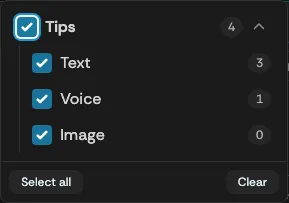
The Filters popover
Section titled “The Filters popover”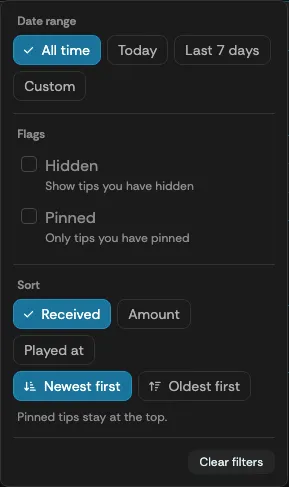
| Option | What it does |
|---|---|
| Date range | Limits the queue to a time period: All time, Today, Last 7 days, or a Custom range. While you are live (or just finished), a broadcast preset also appears so you can filter to the current or last broadcast. |
| Hidden | Shows tips you have hidden. |
| Pinned | Shows only tips you have pinned. |
| Sort | Orders the queue by Received, Amount, or Played at, newest or oldest first. Pinned tips stay at the top. |
You can also sort by selecting the Amount, Received, or Played column headers directly — select a header again to flip the direction.
Active filters appear as chips above the queue, and Clear filters resets everything at once.
Tip actions
Section titled “Tip actions”Each tip in the queue has a set of actions on the right-hand side. On narrow screens the icons collapse behind a More actions (⋮) button next to Play, which opens a menu listing each action by name.

The Received and Played columns show relative times (“5 minutes ago”) that keep updating while the Panel is open. On narrow screens, where those columns are hidden, the same times appear under the tip’s message, and the amount sits under the tipper’s name. Select a tipper’s avatar or name to open their profile.
| Action | What it does |
|---|---|
| Play | Adds the tip to the play queue, to play through your Supertip overlay. While the tip is playing, this button becomes Skip (voice tips) or Dismiss (text and image tips). |
| Hide | Hides the tip from the Unplayed and Played queues. Enable the Hidden flag in the Filters popover to display tips you have hidden. |
| Unhide | Unhides a hidden tip. Visible once the Hidden flag is enabled in the Filters popover. |
| Pin to top | Places the tip at the top of the queue. Use Unpin to release it. |
| Mark as Read | Moves the tip into the Played queue. |
| Mark as Unread | Moves the tip back into the Unplayed queue. |
| Local Preview | Plays a voice tip’s audio locally in your browser tab, not through the Supertip overlay. If your show uses the Announcer, it plays the tip’s whole announcement chain, and is available for any tip whose chain is switched on. |
| Download Clip / Download Image | Downloads a copy of a voice tip’s audio or an image tip’s picture to your device. |
| Award a badge | Opens a searchable list of your published Manual badges to award the tipper for this tip. Badges the tipper already holds are greyed out. See Your Badges. |
Items per page
Section titled “Items per page”The Items control below the queue sets how many tips are displayed per page (5, 10, 25, 50, or 100). Page-number buttons move between pages, and a label such as “1–25 of 119” shows where you are in the list.
