
Creating a Badge
Select New badge on the Achievements page to open the badge editor, or Edit on an existing badge. This article walks through each part of the editor in order.
How Is It Awarded?
Section titled “How Is It Awarded?”Start by choosing the kind of badge:

- Automatic — earned the moment a tip matches the rule.
- Manual — you award it from the Panel while a tip plays.
- Transient — held while true; it can move to another viewer.
The rest of the editor appears once you’ve chosen. The kind can’t be changed once the badge is live.
Earn Rule
Section titled “Earn Rule”For Automatic and Transient badges, the Earn Rule section is where you describe what earns the badge. (Manual badges have no rule — you award them by hand.) A rule is made of goals — a target to reach — and conditions that decide which tips count toward it. A plain-language summary of the whole rule updates underneath as you build it.
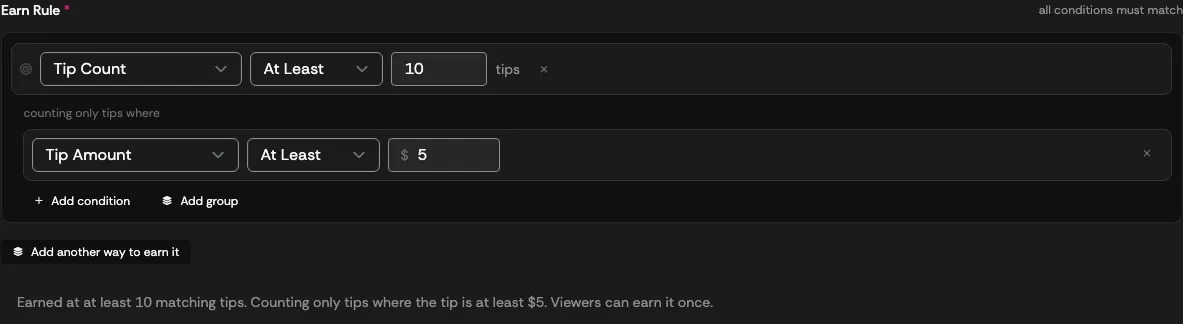
A new rule starts as “Earned on the first matching tip”. Select Set a goal to require more:
| Goal type | Earned for |
|---|---|
| Tip Count | Sending a number of matching tips — for example, At Least 10 tips. |
| Cumulative Amount | Tipping a total amount across matching tips — for example, At Least $25 tipped in total. |
| Tipping Streak | Tipping on a run of consecutive Days, Weeks, or Months in a row. |
| Stream Position | Sending The First Tip, Tip Number… n, or The Last Tip of a stream. |
| Streak of Streams | Tipping in a number of your streams in a row. |
| Comeback | Tipping again after a number of days away. |
Tip Count and Cumulative Amount take a comparison: At Least, More Than, At Most, Under, Exactly, or Not.
Conditions
Section titled “Conditions”Under a goal, counting only tips where lists the conditions a tip must meet to count. Select Add condition to add one:
| Condition | Matches tips that… |
|---|---|
| Tip Amount | Are at least, more than, at most, under, exactly, or not a dollar amount. |
| Tip Type | Are any combination of text, voice, and image — or any tip type, including ones added later. |
| Message Contains | Include a word or phrase in the message. On voice tips this matches the spoken lines. |
| Voice Used | Use one of the chosen speakers (voice tips). |
| Voice Says | Have the chosen speaker say a particular line (voice tips). |
| Tip Date | Were sent On or After or Before a date and time, on your clock. |
| Calendar | Land on a weekday, a date, a day of the month, a month, a year, an hour, or a minute — matched on your clock, daylight saving included. |
| Time Into Stream | Arrive within a number of seconds of your show going live. |
| During a Live Stream | Arrive while your show is live. |
| Stream Title | Arrive during a stream whose title contains a word. |
| Nth Stream | Arrive during, for example, the first Monday stream of the month, or the 3rd stream of the year. |
Voice conditions need at least one speaker on your show — see Voice Tip Settings.
Grouping conditions and goals
Section titled “Grouping conditions and goals”By default, every condition must match (“all conditions must match”). Select Add group to nest conditions with their own ALL / ANY / ONE OF switch:
- ALL — every condition in the group must be true of the tip.
- ANY — at least one must be true.
- ONE OF — exactly one must be true; matching two stops the tip counting.
Goals group the same way. Select Add another way to earn it to turn a single goal into an ANY group with a second goal, so the badge is earned by reaching either. Inside a group, Add goal and Add group build the rule out further, and each group has its own switch: ANY (“one of these goals earns the badge”), ALL (“every one of these goals must be reached”), or ONE OF (“exactly one of these goals earns it — reaching two does not”).
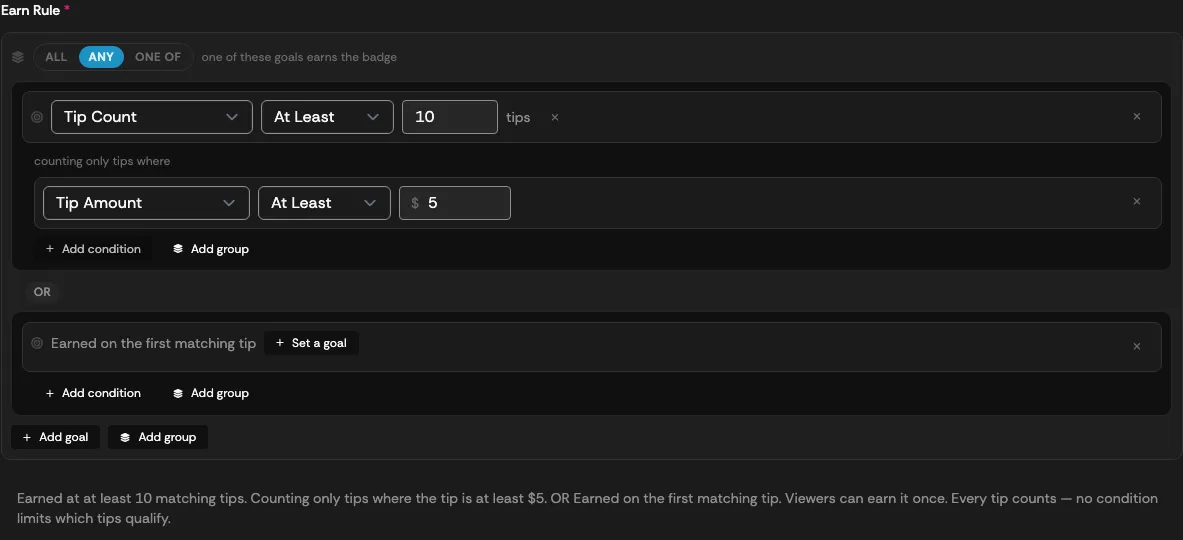
Groups can nest several levels deep, and a rule can combine up to 20 goals. A rule with no conditions counts every tip — the summary says so.
Transient badges
Section titled “Transient badges”Transient badges are held while all conditions stay true, and granted and released as the rule flips. By default, everyone who qualifies holds the badge together. A rule that can never stop being true — a lifetime total, say — would never leave anyone, so transient rules have two extra controls:
- Held by a Limited Number of Viewers — only the latest N viewers to qualify (1–100) hold it; a new qualifier takes it from whoever tipped longest ago. With a limit of 1, the badge passes straight to the newest qualifier.
- Measured Over a Rolling Window — only the last N days count, so a total or streak can lapse.
Transient badges are checked periodically rather than instantly.
Artwork, name, and description
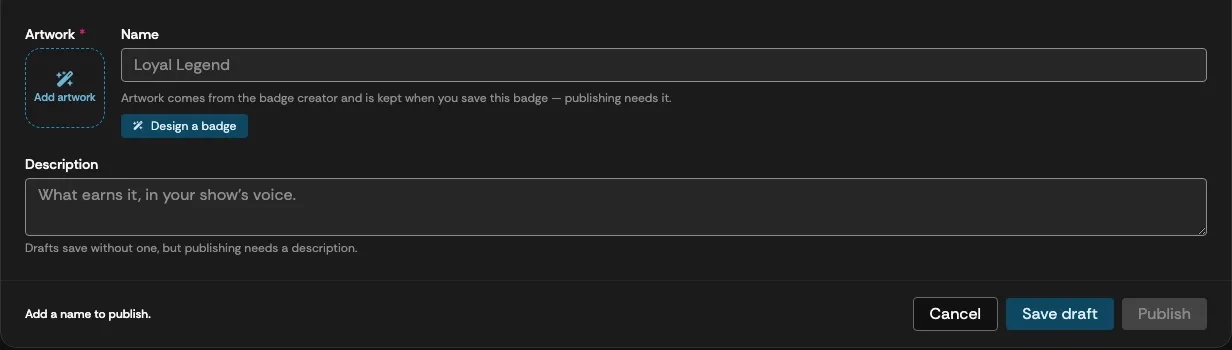
Section titled “Artwork, name, and description”| Field | What it does |
|---|---|
| Artwork | Select Design a badge (or Redesign the badge) to generate artwork in your house style — see Badge Artwork. Artwork is kept when you save the badge, and publishing needs it. |
| Name | The badge’s name, up to 128 characters. Required to save. |
| Description | What earns it, in your show’s voice. Drafts save without one, but publishing needs it. |
Saving and publishing
Section titled “Saving and publishing”The footer offers Cancel, Save draft (or Save changes on a published badge), and Publish. When Publish is unavailable, the footer says why — for example, “Design badge artwork to publish.” or “Add a description to publish.”
Selecting Publish asks you to confirm: publishing locks the earn rule while the badge is live, viewers can start earning it right away, and if the rule has no conditions, every tip counts. Select Publish Badge to go live, or Keep as Draft.
Editing a published badge
Section titled “Editing a published badge”While a badge is live, its kind and earn rule are locked and shown read-only — “Live — the earn rule is locked. Deactivate the badge to change how it’s earned.” Its name, description, and artwork stay editable.
Deactivate the badge from the Achievements page to unlock the rule. Reactivating puts the new rule in force: viewers who already earned an Automatic badge keep it, while everyone holding a Transient badge is re-checked and anyone who no longer qualifies loses it.