Panel Screen
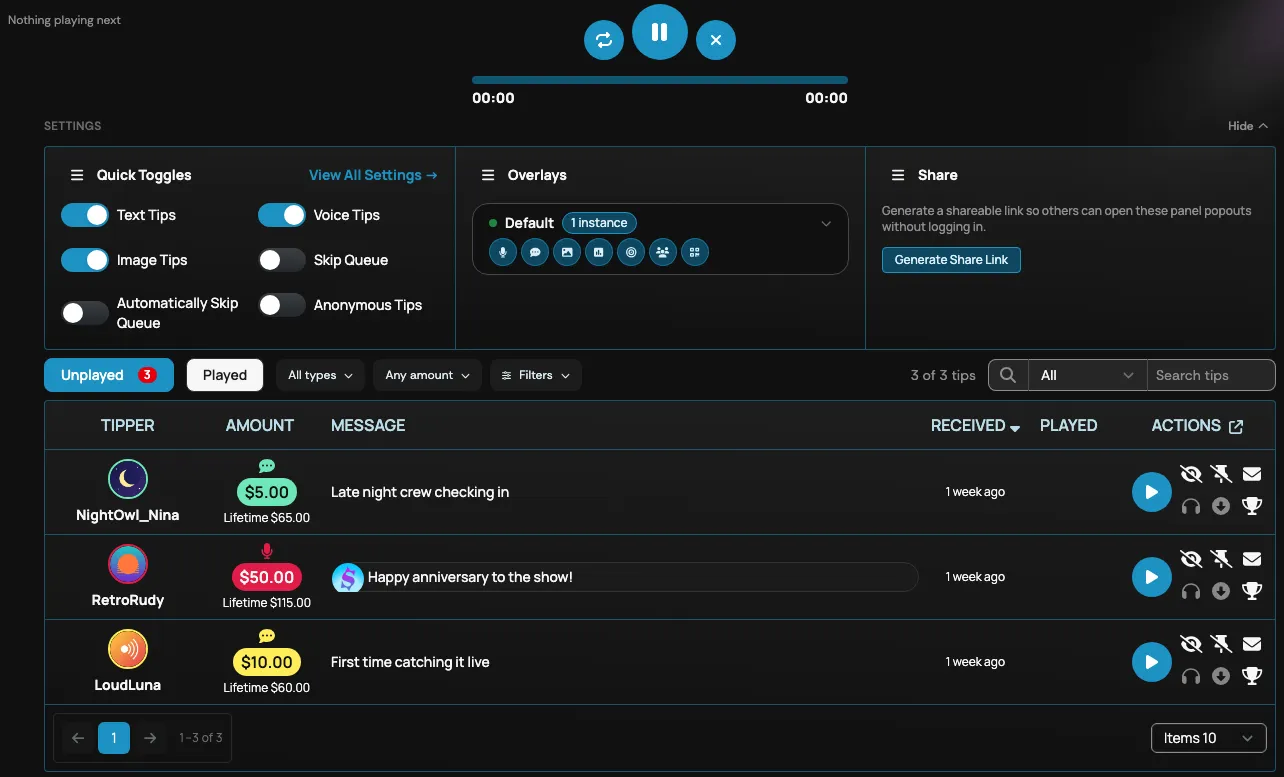
The Panel is the main screen you use to play voice, text, and image tips sent by your viewers. It also lets you enable and disable commonly used features, create polls, and check your earnings summary. This article explains how to open the Panel and customize which sections it shows.
Opening your Panel
Section titled “Opening your Panel”Select Panel from the left side menu of the Creator Dashboard to open your Panel.
Customizing your Panel screen
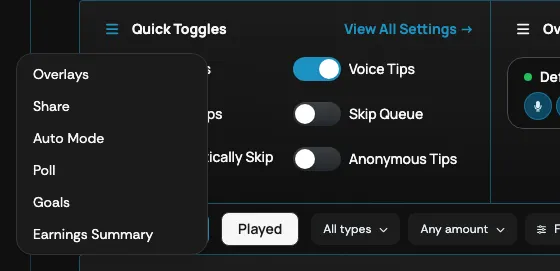
Section titled “Customizing your Panel screen”You can customize what appears in your Creator Dashboard Panel using the menu options listed next to each section title.

On a desktop browser, the Creator Dashboard Panel displays three of the following sections side by side — or four when the Panel is wide enough, such as on a large monitor:
- Quick Toggles
- Overlays
- Share
- Poll
- Goals
- Earnings Summary
On smaller screens, all sections are available as tabs instead — two rows of three on a phone. Use the Hide and Show button in the Settings row above the sections to collapse or reopen the whole sections panel.
To change which sections are displayed:
- Select the menu option next to the title of the section you want to replace.
- Select the section you want instead from the drop-down menu.
You can also drag a section by its title to swap it with another displayed section. On smaller screens the tabs select a section directly, so there is no menu option to swap.
Sharing panel access
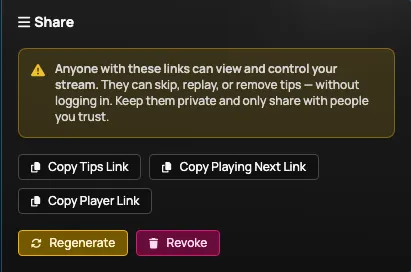
Section titled “Sharing panel access”The Share section generates links that let co-hosts, moderators, or producers open individual panel views without a Supertip account.
Select Generate Share Link to create your links, then copy the one you need:
- Copy Tips Link — the tips table.
- Copy Playing Next Link — the play queue.
- Copy Player Link — the player controls.
- Copy Chat Link — the live chat feed, with the same Show and Hide controls as the Panel. This option appears when a broadcast channel is connected in Broadcast Settings. The chat window fills whatever height you give it, so make it taller to see more messages at once.
Pop-out windows
Section titled “Pop-out windows”Some panel views can be opened in their own browser window — useful for multi-monitor setups. Select the pop-out button to the right of the player controls (below them on smaller screens) to open the player in a separate window, or the pop-out button in the tips table header to open the table on its own.
Live Chat
Section titled “Live Chat”When a broadcast channel is connected and live, the Panel also shows a Live Chat feed of chat messages from your connected platforms, with a logo linking to each running broadcast. Hover a message and select Show to display it on your overlay (on a touch screen the button is always visible); the message is highlighted while it is showing and its button becomes Hide, which removes it from the overlay again. The same controls are available in the shared chat view opened from Copy Chat Link, and Skip in the Player pop-out also clears a showing chat message. Connect your channels and choose which events are pulled in Broadcast Settings. To put the whole feed on stream instead of one message at a time, add a Live Chat layer to your overlay.