
Your Badges
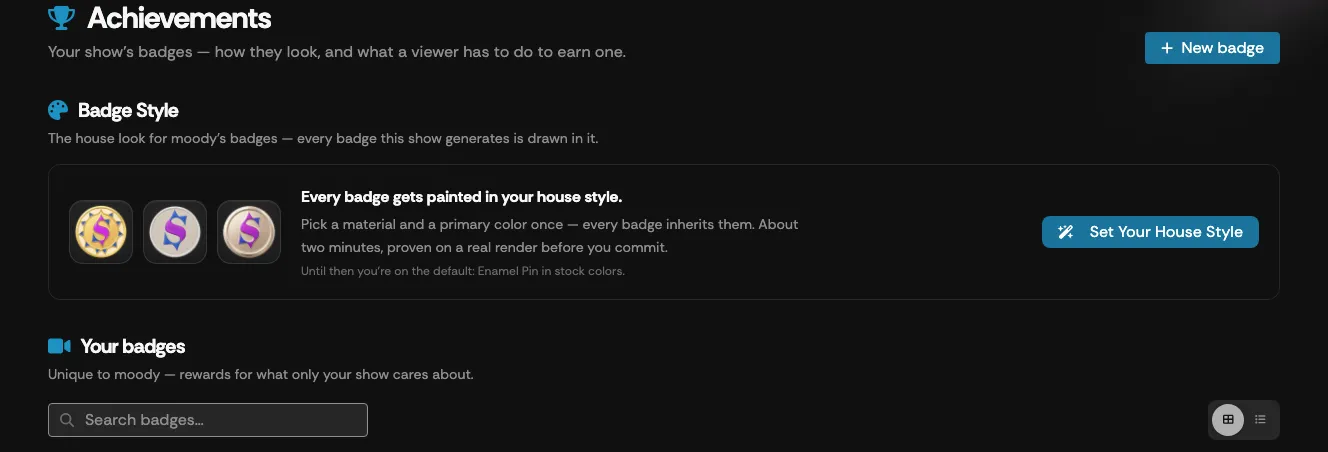
A badge has artwork drawn in your show’s house style, a name, a description, and a way of being awarded. Viewers who earn it keep it on their public Supertip page, can feature it next to their name on their tips, and see it announced on your overlay when it’s earned. To open your badges, go to the Creator Dashboard and select Achievements.
How a badge is awarded
Section titled “How a badge is awarded”Every badge is one of three kinds:
| Kind | How it’s awarded |
|---|---|
| Automatic | Earned the moment a tip matches the badge’s earn rule. Once earned, a viewer keeps it. |
| Manual | You award it yourself from the Panel while a viewer’s tip plays — for a contest winner, say. |
| Transient | Held while the earn rule stays true, and released the moment it stops — so it can move from viewer to viewer. |
Badge states
Section titled “Badge states”| State | What it means |
|---|---|
| Draft | Invisible to viewers until published. Everything about it can still change. |
| Active | Published and earnable right now. Its earn rule is locked while it’s live. |
| Inactive | Deactivated — no longer earnable, but viewers keep what they already earned. |
The Achievements page
Section titled “The Achievements page”The top of the page shows your Badge Style — the house look every badge is drawn in — with an Edit button. See Badge Artwork for setting it up.
Below it, Your badges lists every badge unique to your show, grouped into Active, Drafts, and Inactive with a count on each heading. Select a heading to collapse or expand the group (Inactive starts collapsed). Use Search badges… to filter by name or description, and the icons beside it to switch between the grid and list views.
Badge cards
Section titled “Badge cards”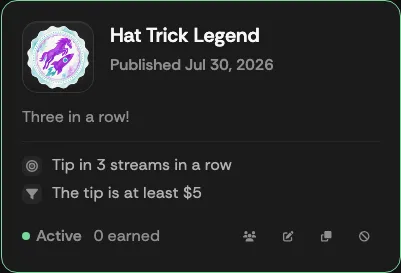
Each card shows the badge’s artwork, name, and description; when it was published (or created, for drafts); a Manual chip on hand-awarded badges or a Periodic chip on rules checked on a schedule; and a plain-language summary of its earn rule. The footer shows the badge’s state and, for published badges, how many viewers have earned it — or, for transient badges, how many are holding it right now.
The actions on a card:
| Action | What it does |
|---|---|
| Publish | Drafts only. Makes the badge live — see Publishing. Disabled until the badge has artwork. |
| Earners | Published badges only. Opens the list of viewers who earned it — newest first, with the tip that earned it and a link to each viewer’s public page. For transient badges it lists current holders first, then past reigns. |
| Edit | Opens the badge in the editor. See Creating a Badge. |
| Duplicate | Creates a new draft named “name (copy)” with the same artwork and rule, at the top of Drafts. |
| Delete draft | Drafts only. Permanently deletes the badge, its artwork, and its earn rule, after confirmation. |
| Deactivate | Active badges only. Stops the badge being earnable, after confirmation. Viewers keep it if they already earned it. |
| Reactivate | Inactive badges only. Makes the badge earnable again. |
Select a badge’s name to open its details: the artwork, description, how it’s earned (including whether it Earns Instantly or Earns Periodically), the full rule, and when it was created and published. Use the arrows to step through your badges, and Edit Badge to open the editor.
Badge Library
Section titled “Badge Library”At the bottom of the page, the Badge Library offers ready-made badges to start from. Select Add as Draft on any of them to file a copy under your Drafts, where you can rename it, restyle it, and change its rule before publishing. Each library badge can be added once; the section disappears once you’ve added them all.
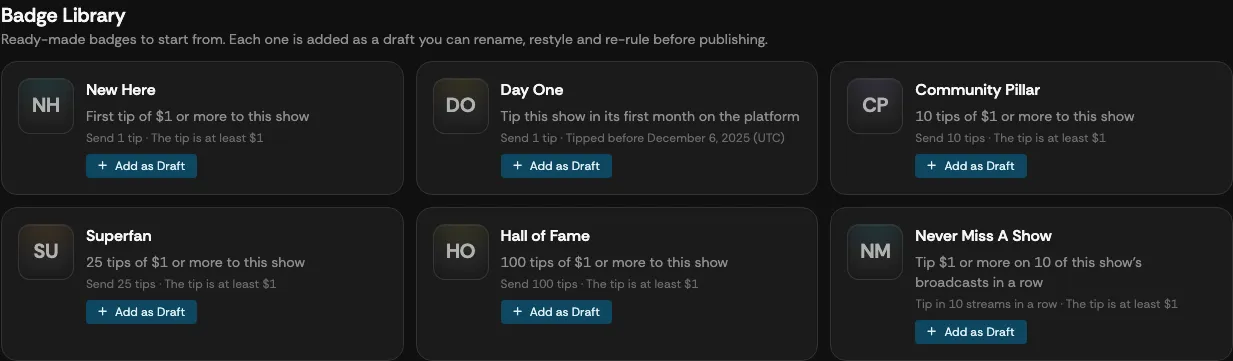
| Badge | Earned for |
|---|---|
| New Here | A first tip of $1 or more to your show. |
| Day One | Tipping your show in its first month on Supertip. |
| Community Pillar | 10 tips of $1 or more. |
| Superfan | 25 tips of $1 or more. |
| Hall of Fame | 100 tips of $1 or more. |
| Never Miss A Show | Tipping $1 or more on 10 of your streams in a row. |
Library badges arrive without artwork — design it before publishing. See Badge Artwork.
Publishing a badge
Section titled “Publishing a badge”Publishing needs a name, a description, artwork, and a way of being awarded. When you publish, you’re asked to confirm: publishing locks the earn rule while the badge is live, so no one can change how it’s earned. Its name, description, and artwork stay editable. Viewers can start earning it right away.
To change a live badge’s rule, deactivate it first — the rule becomes editable again — then reactivate it. Viewers who already earned the badge keep it; for a transient badge, everyone holding it is re-checked against the new rule.
Awarding a Manual badge
Section titled “Awarding a Manual badge”Manual badges are awarded from the Panel. Select the Award a badge trophy action on any tip in the queue to open a searchable list of your published Manual badges, then choose one to award it to that tipper. Badges the tipper already holds are greyed out. The confirmation toast has an Undo in case you pick the wrong one.
Where badges appear
Section titled “Where badges appear”- On the viewer’s public Supertip page, where they can open each badge and share it as a card on social platforms.
- Next to the viewer’s name on their tips, once they feature it in their Trophy Case (up to three).
- On your overlay, announced by the Statuses layer when the badge is earned — see Overlay Settings.
- In the tipper profile popup in your Panel.
Deactivating a badge stops it being earned and announced; viewers who earned it still have it and can still share it.