Badge Artwork
Every badge your show generates is drawn in your house style — a material and a set of colors you choose once. Each individual badge then gets its own artwork from the Badge Creator, drawn in that style from an image or a description. Publishing a badge requires artwork.
Setting your house style
Section titled “Setting your house style”The Badge Style card at the top of the Achievements page shows your current house style, or offers Set Your House Style if you haven’t chosen one yet (until then, badges use Supertip’s default style and stock colors). Select it, or Edit, to open the House Style wizard. It has three steps — Material, Colors, and Proof — and takes about two minutes.

Material
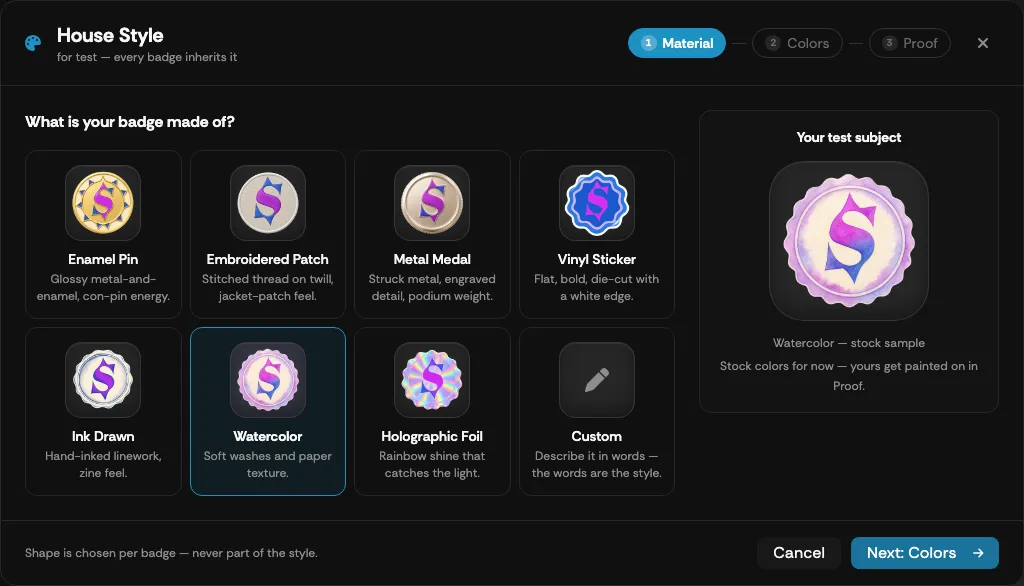
Section titled “Material”Choose what your badges are made of:
| Material | Look |
|---|---|
| Enamel Pin | Glossy metal-and-enamel, con-pin energy. |
| Embroidered Patch | Stitched thread on twill, jacket-patch feel. |
| Metal Medal | Struck metal, engraved detail, podium weight. |
| Vinyl Sticker | Flat, bold, die-cut with a white edge. |
| Ink Drawn | Hand-inked linework, zine feel. |
| Watercolor | Soft washes and paper texture. |
| Holographic Foil | Rainbow shine that catches the light. |
| Custom | Describe the style in words — material, finish, and era are usually enough (up to 200 characters). |
Shape is chosen per badge, never as part of the style. Select Next: Colors to continue.
Colors
Section titled “Colors”Choose a Primary color (the badge body) and an Accent (trims, gems, stitches); a Detail color is optional. The quickest route is Start From a Color You Already Own: paste a hex code and select Rebuild Palettes to get four suggested palettes built around it — Opposites pop, Same family, Softened contrast, and Three-way — every one of which already passes the on-stream checks. Or Tune by Hand with the individual color fields.
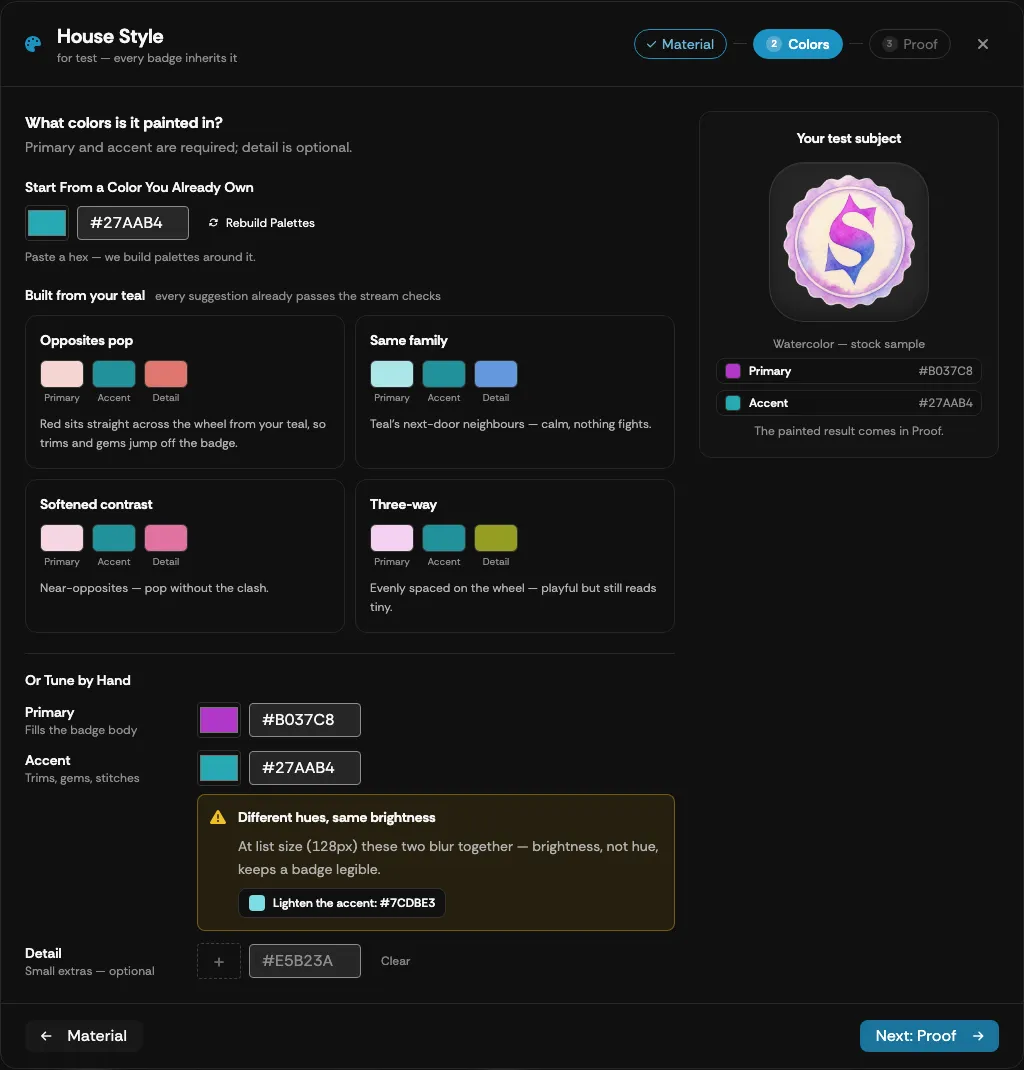
The wizard checks your colors against how badges are used on stream:
- Inside the keying dead zone — badges are cut out of the stream at pure magenta, so colors close to it (including Supertip’s own brand pink) would be erased with the background. This blocks the next step; a safe alternative is offered.
- Too dark to sit on stream — badges sit on a dark overlay and would melt into it. Advisory, with a lightened suggestion.
- Different hues, same brightness — at list size the primary and accent would blur together. Advisory, with a darker or lighter accent suggested.
The test subject on the right shows the Supertip “S” in your chosen material; your colors are painted on in the next step. Select Next: Proof.
The Proof step renders your draft style on a real badge before you commit. Your draft fills the first slot; you can add up to two more variants — Another palette or a Style-Note Tweak such as “with a thick gold border” — and paint them side by side. Select Paint Proofs and wait about 70 seconds per proof (closing the wizard is safe — finished proofs wait for you, kept for 7 days).
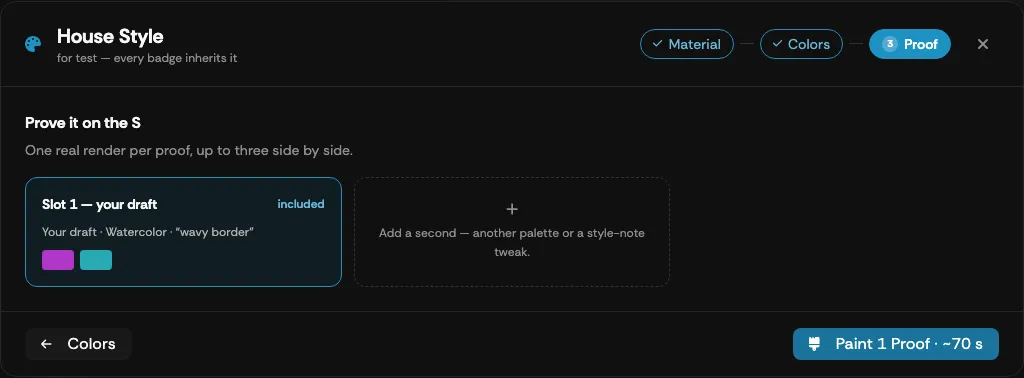
When they’re done, compare them On stream and at list size (the 128px check), star a favourite to carry it into another round, then select Save ”…” as House Style. Only saving changes the live style; Try Another Round goes back to Colors with your favourite adopted.
Generating a badge’s artwork
Section titled “Generating a badge’s artwork”In the badge editor, select Design a badge (or Redesign the badge) to open the Badge Creator.
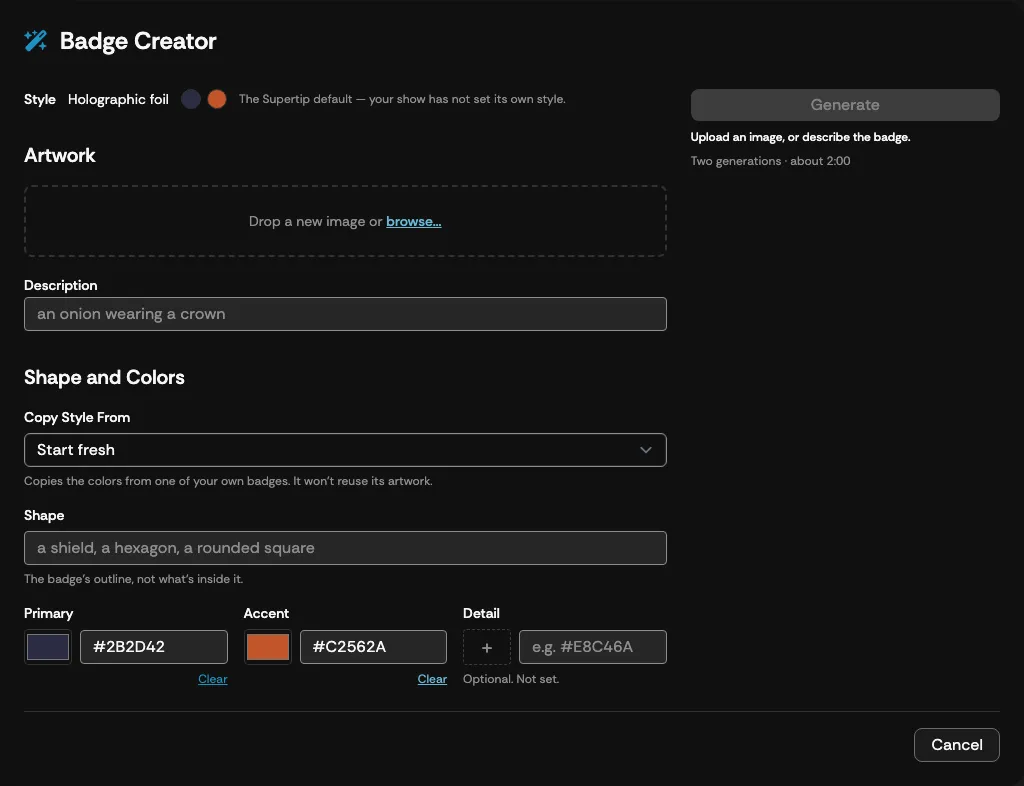
The Style row confirms the house style the badge will be drawn in. Then describe the badge:
| Control | What it does |
|---|---|
| Restyle / Redraw | On a badge that already has artwork: Restyle keeps the same silhouette and repaints it; Redraw draws a new badge. |
| Image | Drop or browse for a reference image to draw from. |
| Description | Describe the badge in words — “an onion wearing a crown”. Either an image or a description is enough; together they steer the same drawing. |
| Copy Style From | Copies the colors from one of your other styled badges (not its artwork). |
| Shape | The badge’s outline — “a shield, a hexagon, a rounded square” — not what’s inside it. |
| Primary / Accent / Detail | Colors for this badge, prefilled from your house style. Detail is optional. |
Select Generate. The panel shows the stages — Waiting for a Slot, Drawing the Silhouette, Applying the Style — with an estimate (about two minutes for a new drawing, about one for a restyle). Generation carries on if you close the dialog; reopening the badge picks it up again, and finished artwork can be claimed for up to an hour. Select Stop generating to cancel.
When it finishes, the result appears under New beside your Current artwork. Select Use this badge to take it, or Generate another to try again. The artwork isn’t kept until you save the badge.