
Supertip Browser Camera
Supertip Browser Camera is a free Chrome extension that puts your Supertip overlay on a broadcast you run from a browser studio, such as StreamYard or Google Meet, without OBS or any virtual camera software. It adds two devices to the camera and microphone lists of any site that asks for a camera:
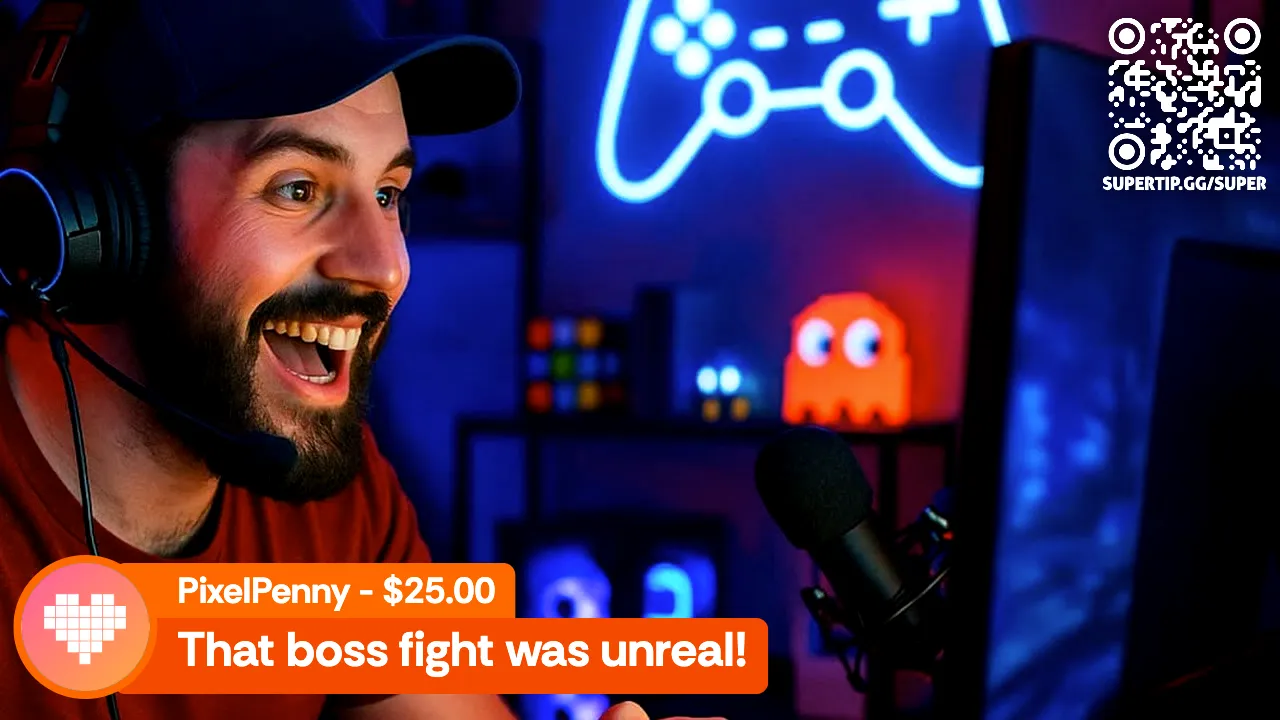
- Supertip Camera — your real camera with your tip overlay layered on top, always as a full 16:9 picture.
- Supertip Microphone — your real microphone with the overlay’s audio mixed in.
A studio sends whatever camera and microphone you give it to every guest and to the broadcast, so everyone sees and hears each tip.
Before you begin
Section titled “Before you begin”You need:
- Google Chrome on a computer.
- A Supertip account with an overlay. Build your overlay under Settings > Overlay — see Overlay Settings.
Installing the extension
Section titled “Installing the extension”- Open Supertip Browser Camera in the Chrome Web Store and select Add to Chrome.
- Chrome warns that the extension can read and change data on all websites. That access is what lets it offer the two devices on whichever studio you use. Select Add extension to continue.
- Select Chrome’s puzzle piece icon to the right of the address bar and pin Supertip Browser Camera, so its icon stays in your toolbar.
Setting it up
Section titled “Setting it up”The extension’s options page opens after you install it. To open it again later, right-click the Supertip icon in your toolbar and select Options.
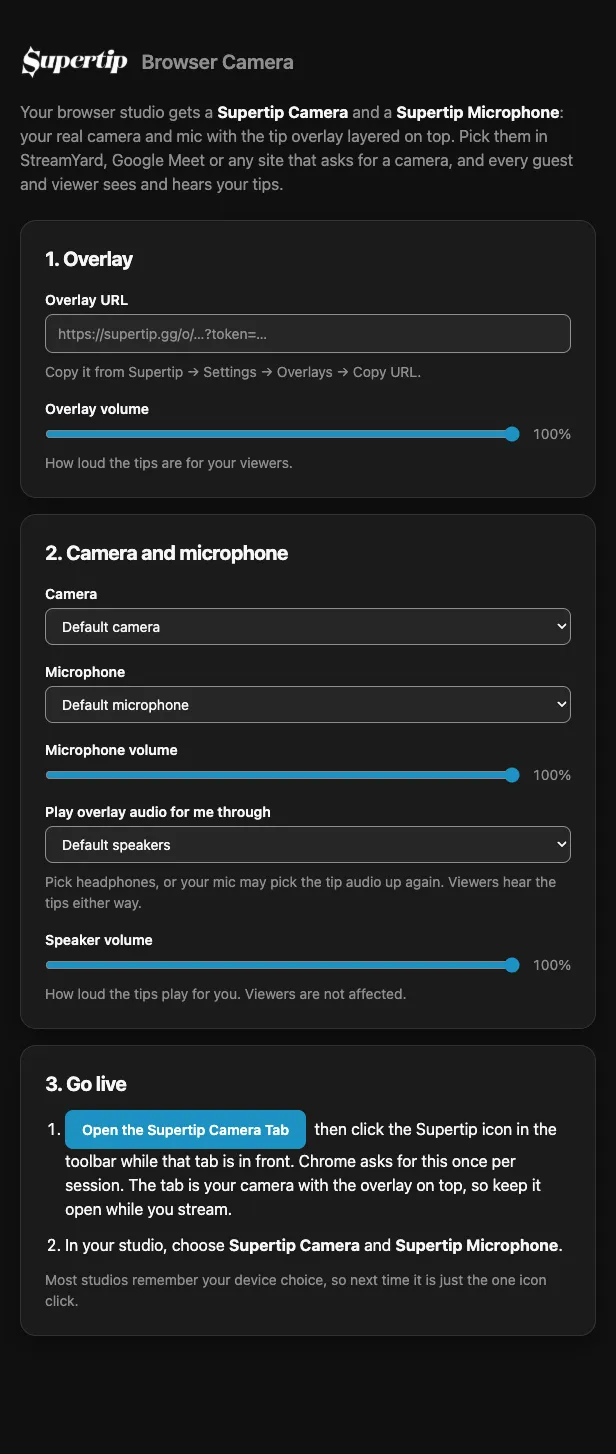
- In your Creator Dashboard, go to Settings > Overlay and select Copy URL on the overlay you want to use.
- Paste it into the Overlay URL box under 1. Overlay.
- Under 2. Camera and microphone, select Allow Camera and Microphone and allow access when Chrome asks. Chrome only asks once.
- Choose your Camera and Microphone.
- Adjust the remaining settings to suit your setup.
| Setting | What it does |
|---|---|
| Overlay URL | The overlay the extension layers over your camera. |
| Overlay volume | How loud the tips are for your viewers. |
| Camera | The real camera that sits behind the overlay. |
| Microphone | The real microphone the overlay audio is mixed into. |
| Microphone volume | How loud your microphone is for your viewers. |
| Play overlay audio for me through | The speakers or headphones you hear the tips on: Default speakers, any other output, or Nowhere (off). Viewers hear the tips either way. |
| Speaker volume | How loud the tips play for you. Viewers are not affected. |
Each time you stream
Section titled “Each time you stream”- Select Open the Supertip Camera Tab on the options page, or select the Supertip icon in your toolbar. A pinned Supertip Camera tab opens, showing your camera with the overlay on top.
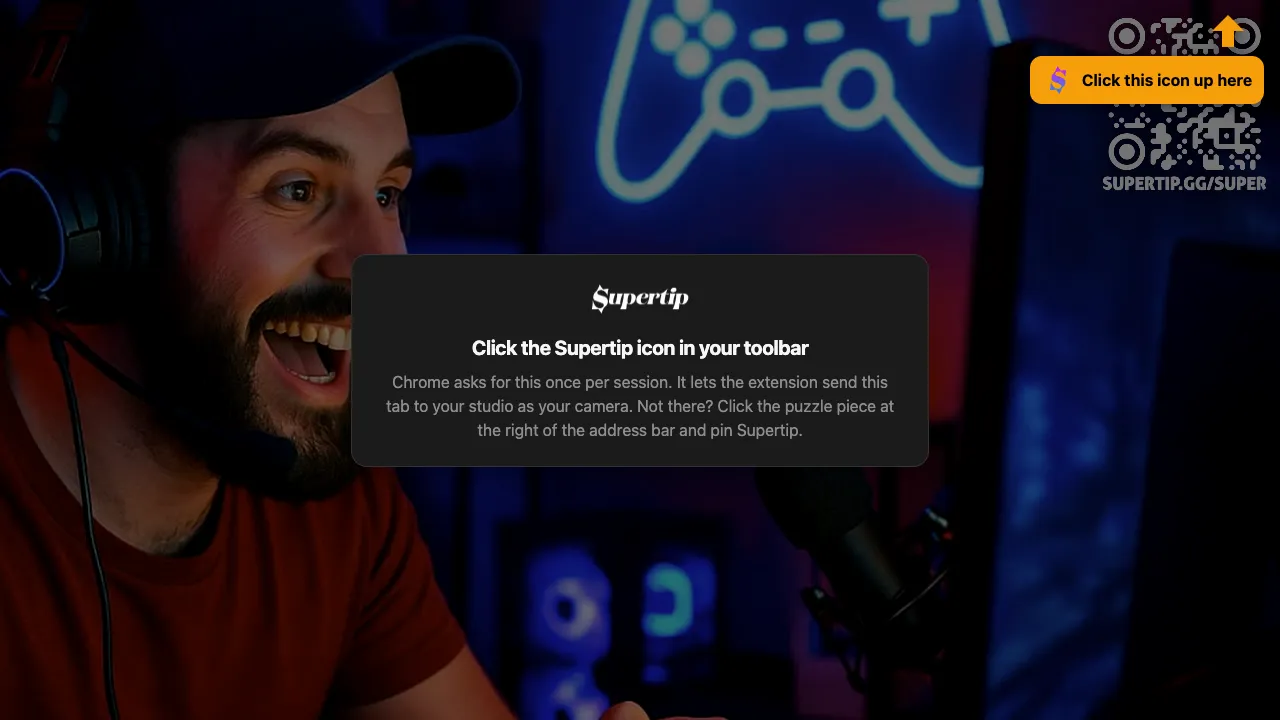
- With that tab in front, select the Supertip icon in your toolbar once. Chrome needs this click once per Chrome session before the extension can send the tab to your studio. Until you click, the tab points an arrow at the toolbar and the icon shows a blinking !.
- In your studio, choose Supertip Camera as your camera and Supertip Microphone as your microphone.
- Keep the Supertip Camera tab open while you stream. It can stay in the background.
Most studios remember your device choice, so next time you only need the one icon click. Play tips from your Panel as usual — they appear on your camera and play through your microphone.
What the icon and tab tell you
Section titled “What the icon and tab tell you”| You see | What it means |
|---|---|
| ON on the icon | The overlay is going out to a studio. |
| A blinking ! on the icon | The extension is waiting for you to select its icon while the Supertip Camera tab is in front. |
| Ready on the tab | The tab is set up. Choose Supertip Camera and Supertip Microphone in your studio. |
| No overlay URL yet on the tab | Paste your overlay URL into the options page. |
| Camera unavailable on the tab | Select Allow Camera and Microphone on the options page, then pick your camera there. |
Good to know
Section titled “Good to know”- The overlay lives inside your camera tile. In a studio layout where your tile is small or cropped, the overlay is small or cropped too.
- Muting yourself in the studio also mutes the tip audio, because it travels on the same microphone.
- If tips sound muffled, turn off noise suppression in your studio’s audio settings.
- The extension works on any site that asks for a camera. Supertip Browser Camera is not affiliated with or endorsed by StreamYard or Google.