
Overlays Panel
The Overlays section of your Panel lets you monitor and manage the overlays connected to your active streaming software or browser while you stream. It shows which overlays are currently connected and gives you per-overlay actions to keep them running smoothly during a session. This is different from Settings > Overlay, where you create, build, and customize overlays — see Overlay Settings for creating and configuring them.
Reading the connected overlays
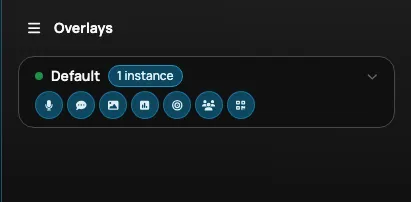
Section titled “Reading the connected overlays”Each overlay that is connected to an open browser or streaming software appears as its own row in the Overlays section. Together they show you, at a glance, which of your overlays are live while you stream.
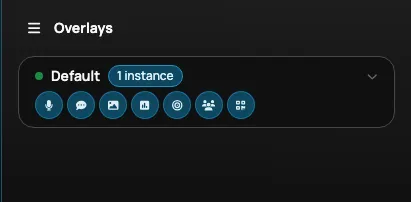
The following information and settings are available for each overlay listed in the Overlays Panel:
| Setting | What it does |
|---|---|
| Overlay Title | Shows the title given to the connected overlay. |
| Instances | Shows the number of connected browsers or streaming software using the URL of the connected overlay. |
| Overlay Layers | A row of seven layer icons — Voice, Text, Image, Polls, Goals, Contributors, and QR code — with the layers this overlay has highlighted and the missing ones dimmed, so you can see at a glance whether the tip you are about to play has somewhere to go. Hover an icon for its name, or expand the row to read a Plays line listing the layers in words. Statuses and Live Chat layers are not listed here, since they never stop a tip from playing. |
| Expand / Collapse additional settings | Shows or hides the additional per-instance settings for the connected overlay — Identify this instance, Refresh this instance, and Disconnect this instance. |

The Instances count tells you how many browsers or streaming sources are currently using that overlay’s URL.

Use the Expand / Collapse additional settings control on an overlay row to show or hide its per-instance actions.
Managing a connected instance
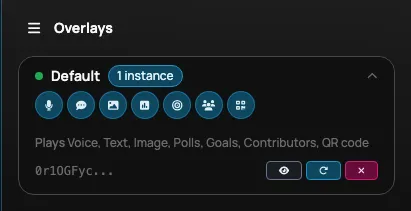
Section titled “Managing a connected instance”When you expand an overlay’s additional settings, you can act on each connected instance directly from the Panel without leaving your stream.
| Setting | What it does |
|---|---|
| Identify this instance | Displays the name of the overlay in the connected browser or streaming software. For example, selecting Identify this instance for an overlay titled “Default” shows that name in the connected browser or streaming software, so you can tell which source is which. |
| Refresh this instance | Tells this one connected browser or streaming source to reload the overlay. |
| Disconnect this instance | Disconnects this one connected browser or streaming source from the overlay. |
The Identify action helps you confirm which connected source maps to which overlay.

The Refresh action reloads the overlay in that one connected browser or streaming source.

The Disconnect action drops that one connected browser or streaming source; other instances using the same URL are unaffected.
