
Announcer
The Announcer plays a sound and says a line before each tip, and optionally after it. Without it, only voice tips make a sound on stream — text and image tips, YouTube Super Chats and memberships, and Rumble rants and subscriptions appear silently. With it, every kind of tip gets its own chain: an ordered sequence of sound effects, spoken lines in one of your show’s AI voices, pauses, and random picks that plays around the tip.
To open it, go to the Creator Dashboard and select Settings → Announcer.
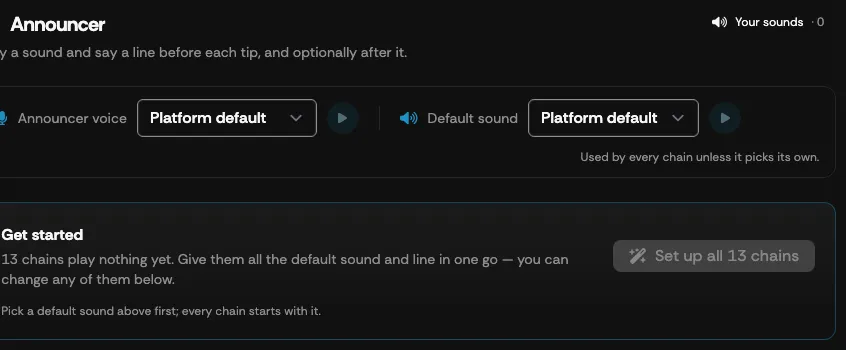
Announcer voice and default sound
Section titled “Announcer voice and default sound”The bar at the top of the page sets the defaults every chain starts from:
| Setting | What it does |
|---|---|
| Announcer voice | The AI voice that speaks your announcement lines. Choose Platform default or any of your show’s speakers — the same voices available for voice tips. Select the play button to hear the voice. |
| Default sound | The sound effect a new chain starts with. Choose Platform default, one of Your uploads, or a Stock sound. Select the play button to hear it. |
Both save the moment you change them, and are used by every chain unless the chain picks its own. Changing the announcer voice also regenerates the spoken lines for tips already waiting in your Unplayed queue on every chain that uses it; changing the default sound only affects sound steps you add from now on.
Your sound effects
Section titled “Your sound effects”Select Your sounds in the top-right corner to open your show’s own sound library. Stock sounds are already available in every picker; the sounds you upload here can only be used by your show.
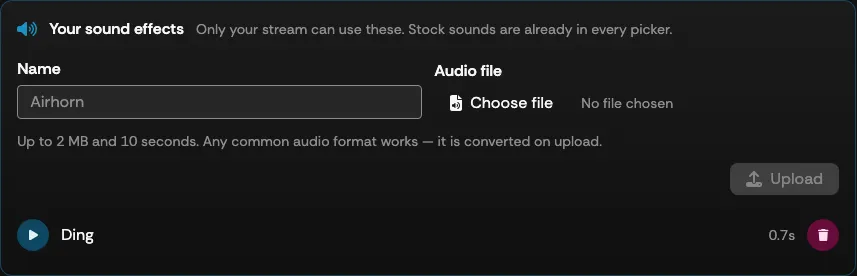
To add a sound:
- Enter a Name (or leave it blank to use the file name).
- Select Choose file and pick an audio file. Any common audio format works — it is converted on upload. Files must be under 2 MB and no longer than 10 seconds.
- Select Upload.
Each uploaded sound lists with a play button and its length; select the trash icon to delete it. Deleting a sound that a chain uses simply drops that step the next time a tip is announced.
Setting up every chain at once
Section titled “Setting up every chain at once”While any chain is still empty, a Get started card offers to give every chain the default sound and a default line in one go. Pick a Default sound first — the card shows what each chain will play (“Example User just tipped 5 dollars” in your announcer voice, after the sound) — then select Set up all 13 chains. If some chains already have an intro, you’re asked to confirm replacing it.
You can change any chain afterwards.
Chains
Section titled “Chains”There is one chain per kind of tip, grouped by platform. Each chain has an On / Off toggle that saves on its own the moment you flip it; switched-off chains keep their steps but play nothing. The switch applies to the very next tip you play, including tips already waiting in your Unplayed queue and replays of tips you have played — switch a chain off and those tips play without their announcement, switch it back on and it returns. Use Turn all on and Turn all off to flip every chain together.
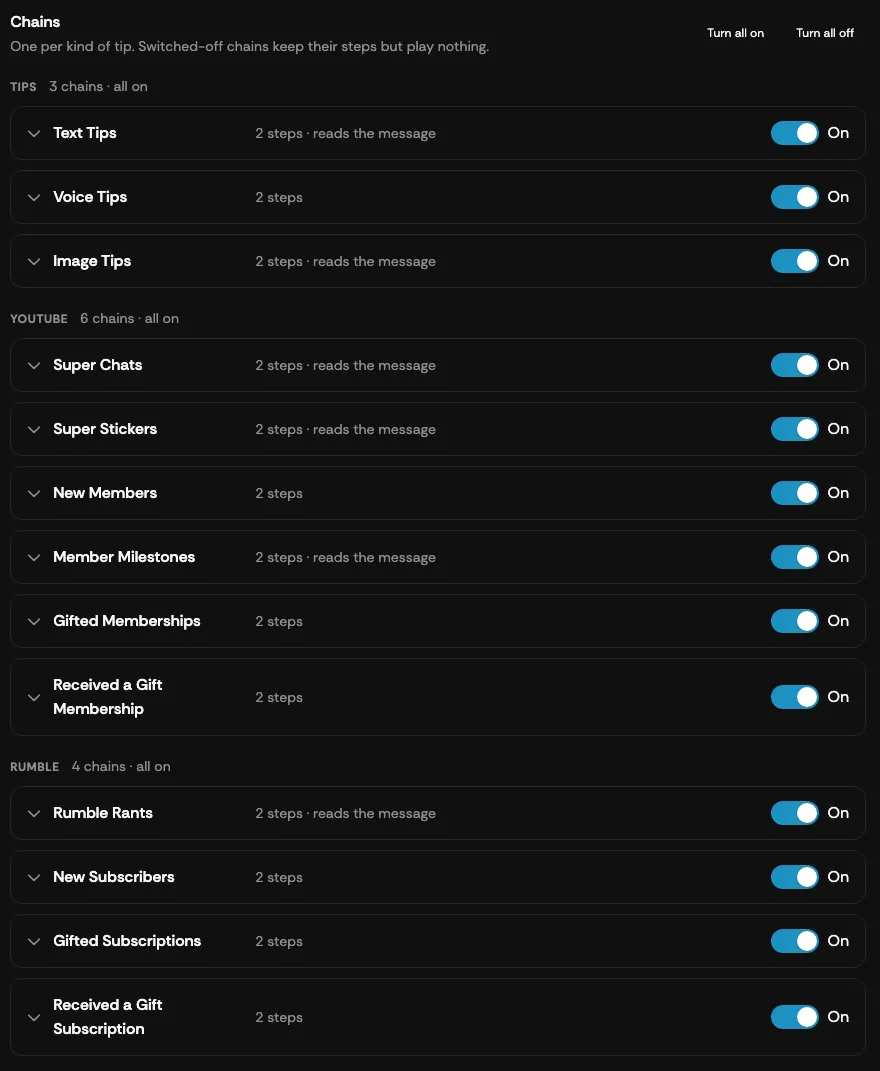
| Group | Chain | What it announces |
|---|---|---|
| Tips | Text Tips | A text tip. The tip can be read aloud. |
| Tips | Voice Tips | A voice tip. The tipper’s own recording plays as the tip, so there is no read-aloud option. |
| Tips | Image Tips | An image tip. The message sent with the image can be read aloud. |
| YouTube | Super Chats | A Super Chat. The message can be read aloud. |
| YouTube | Super Stickers | A Super Sticker. The sticker’s description can be read aloud. |
| YouTube | New Members | A new or upgraded channel membership. |
| YouTube | Member Milestones | A membership anniversary message. The message can be read aloud. |
| YouTube | Gifted Memberships | A viewer gifting memberships to others. |
| YouTube | Received a Gift Membership | Each viewer who receives a gifted membership. |
| Rumble | Rumble Rants | A Rant. The message can be read aloud. |
| Rumble | New Subscribers | A new channel subscription. |
| Rumble | Gifted Subscriptions | A viewer gifting subscriptions. |
| Rumble | Received a Gift Subscription | Each viewer who receives a gifted subscription. |
Whether a YouTube or Rumble event reaches Supertip at all is decided by the event toggles in Broadcast Settings; the Announcer only decides what plays around it. Ordinary chat messages are never announced.
Editing a chain
Section titled “Editing a chain”Select a chain to expand it. Chains that bracket a tip are laid out as a timeline: the steps that play before the tip, the tip itself, the steps that play after the tip, and finally how long the tip stays on screen.
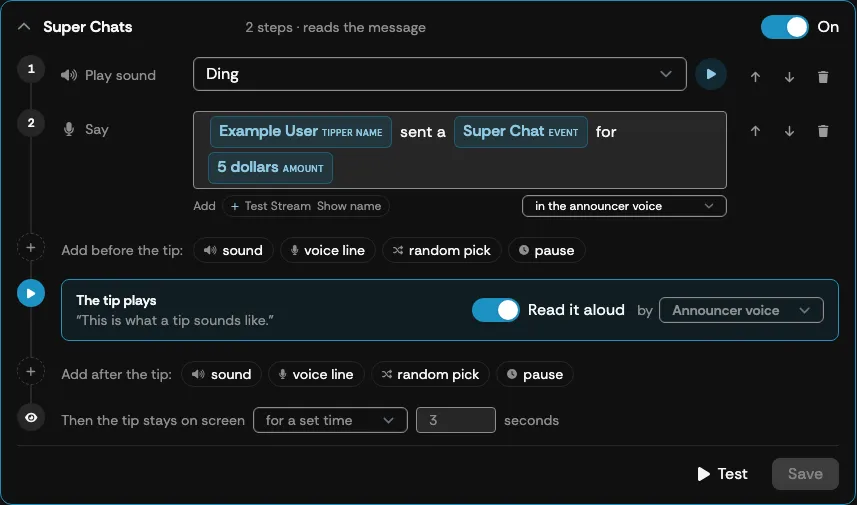
Adding steps
Section titled “Adding steps”Use Add before the tip and Add after the tip to add steps of four kinds:
| Step | What it does |
|---|---|
| Play sound | Plays a sound effect. Choose from Your uploads or Stock; a new sound step starts on your default sound. Select the play button to preview it. |
| Say | Speaks a line in an AI voice. Type the line and insert variables from the Add chips (see below). Each line can use the announcer voice or any specific speaker. Lines are up to 200 characters. A line can include directions in brackets of up to 40 characters, such as [excited]. A Natural voice performs them, and the editor warns you when the line’s voice would read them out loud instead. |
| Pause | Waits for a set number of seconds, from 0.1 to 5. |
| Random pick | Plays one of up to four sounds or lines, chosen at random. The pick is made once per tip, so replaying that tip repeats the same pick; saving a change to the chain re-rolls it for tips still waiting. |
Each slot (before or after the tip) can hold up to 3 sounds, lines, or random picks; pauses don’t count toward the limit. Use the arrows on a step to move it up or down, and the × to remove it.
Variables in spoken lines
Section titled “Variables in spoken lines”Variables appear in a line as chips showing an example value. The chips available depend on the chain:
| Variable | Speaks as |
|---|---|
| Tipper name | The tipper’s display name, or “Anonymous”. |
| Amount | The amount in words — “5 dollars”, “50 cents”, “1,234 dollars and 5 cents”. Not offered on chains without an amount, such as memberships. |
| Event | The kind of tip — “text tip”, “Super Chat”, “Rumble rant”, and so on. |
| Show name | Your show’s name. |
| Months | On Member Milestones — the membership length, such as “6 months”. |
| Gifted | On gift chains — the number gifted, such as “3 memberships”. |
A variable with no value for a particular tip is dropped and the rest of the line still plays; a line with nothing left to say is skipped.
The tip node
Section titled “The tip node”Between the intro and outro steps sits The tip plays, with the chain’s settings for the tip itself:
| Setting | What it does |
|---|---|
| Read it aloud | Speaks the tip’s message in the announcer voice after the intro. Not available on the Voice Tips chain, where the tipper’s recording plays instead. |
| Announcer voice | The voice this chain uses for its lines and read-aloud. Choose Announcer to inherit the page’s default, or pick a specific speaker. |
Holding the tip on screen
Section titled “Holding the tip on screen”The last node on the timeline, Then the tip stays on screen, sets how long the tip remains visible after the chain finishes: not at all (the next tip starts immediately), for a set time (up to 30 seconds — 3 is suggested), or until I dismiss it. The hold is read when the tip plays, so a new value applies to the next tip you play.
Membership and subscription chains have no tip to bracket, so they show a single run of steps followed by the voice and hold settings for the whole sequence.
Test and Save
Section titled “Test and Save”- Test plays the chain as it currently stands — including unsaved changes — in your browser, with its hold. Turn the chain On first, or Test reports that it has nothing to play.
- Save stores the chain’s steps and tip settings; chains with unsaved edits show an Unsaved badge in the list. The On / Off switch is the exception — it saves on its own and never takes unsaved edits with it, so those stay in the editor until you select Save.
- Saving also updates the tips already waiting in your Unplayed queue (received in the last 30 days), so they play the chain as it is now rather than as it was when they arrived. Tips you have already played keep the announcement they were generated with — use Play without the announcer in the Panel if you replay one and don’t want it.
How announcements play on stream
Section titled “How announcements play on stream”Tips play in order: the steps before the tip, then the tip (the voice recording or the read-aloud), then the steps after it, then the hold. The tip card is on screen for the whole chain, and it plays through the tip’s own overlay layer at that layer’s Volume (see Overlay Settings).
Some things to know:
- Text and image tips with an active chain move on by themselves once the chain ends, unless the hold is set to until I dismiss it — previously they always waited for a dismiss. A chain held until dismissed holds the whole play queue.
- Play on another tip while a chain is running queues it behind the chain rather than cutting the chain off — the same as a voice tip. A text or image tip without a chain is a static card, so the next Play still replaces it straight away.
- Pause in the player pauses the current step; Skip and Dismiss end the chain; Loop replays the whole chain, intro included — and while Loop is on, anything queued behind the chain waits until you turn Loop off or press Skip.
- Every spoken line is generated with your AI voice for each tip.
- If a chain’s voice is no longer available, Supertip falls back in order: the line’s own voice, the chain’s voice, the page’s default voice, then the platform default.
The Announcer in the Panel
Section titled “The Announcer in the Panel”- The Play button on a tip whose chain is On shows a small muted-speaker badge: select it to play without the announcer — the tip plays as it would with no chain. Playing normally afterwards clears that choice. The badge and Local preview disappear while the chain is switched off, since the tip would play without it anyway.
- Local preview (the headphone icon) plays the tip’s whole chain in your browser, without the hold.
- The player’s progress bar covers the whole chain, not just the tip.